· Tutorial · 6 min read
3 Quick Ways To Generate Templates for Your Automation
Create automation templates faster using three smart methods: import Canva designs, generate layouts with Templated’s AI Template Generator, or leverage MCP integration for AI-powered creation.

A few years earlier, automation used to be like a “nice upgrade.” However, it has now become a necessity for businesses at all stages.
Roughly 60% of companies already rely on automation tools inside their daily workflows. That shift did not happen by accident. Businesses want speed, avoid errors, and increase productivity.
But here’s the part most teams don’t talk about. Creating templates for automation still takes time. You need to set layers correctly, define text fields, adjust image blocks, and ensure everything works seamlessly with dynamic data. One small mistake in the structure, and the whole workflow breaks.
It becomes even more frustrating when your designs already exist elsewhere. Maybe your marketing team built them in Canva. Instead of using what you already have, you end up rebuilding the same layout again inside your automation editor. That repetition slows down the entire process and makes automation feel harder than it should be.
In this article, I’m going to walk you through three quick ways to generate templates for your automation without starting from zero every time. These approaches focus on speed, flexibility, and real workflows that teams use daily.
So, let’s get started and make your automation setup smoother from the very beginning.
1. Directly Import Your Designs From Canva
Canva is widely used by marketers, founders, and teams who are not full-time designers but still want amazing-looking visuals. It already offers thousands of layouts, and many brands build their designs there. Some teams even design their entire content pipeline inside Canva without thinking about automation. Yes, it takes a lot of time and effort, especially when you need to make changes to the same templates. The best solution is automation.
The good news is - If you already have templates built in Canva, you do not need to recreate them for Templated automation. You can simply take the public Canva link and import it on Templated editor. The best part is that the structure comes in with layers intact, which means you can continue editing without rebuilding anything from scratch.
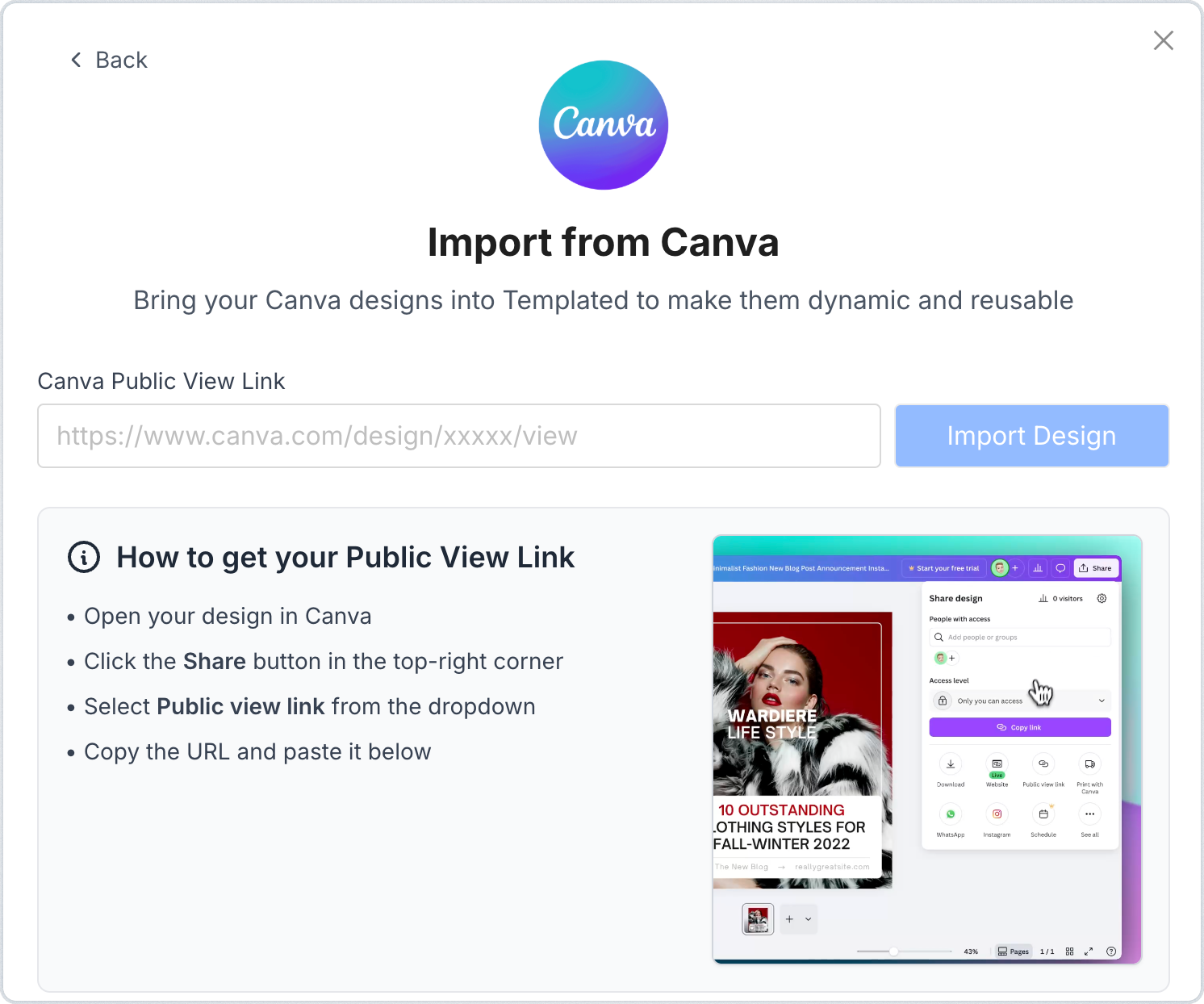
Once imported, it will open in the template design editor, allowing layout elements to remain editable with the layers. This ensures a smooth transition into automation, as your team won’t need to learn an entirely different workflow.
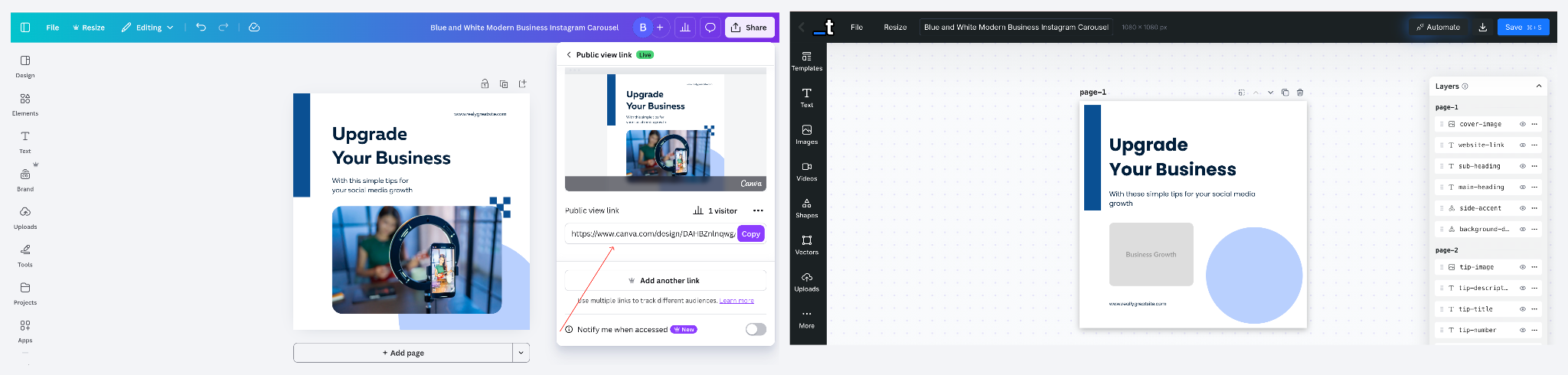
After that, you can connect the template with tools like Make, Zapier, or n8n and start generating multiple versions automatically using dynamic data.
If you prefer reading, read this tutorial
👉 how to import Canva templates into Templated for automation.
Prefer watching, check out the video walkthrough ⬇️
2. Design Templates using AI Feature in Templated
Templated already gives you a large collection of pre-designed templates that help you get started quickly. And they are flexible to edit the layout so it reflects your brand identity without much effort.
But there are moments when you need something more specific. Maybe a campaign needs a fresh structure. Instead of building everything from scratch, you can use the AI Template Generator from the Templated dashboard to create a base template in seconds.
For teams creating video campaigns, this works seamlessly with tools like ai video creator platforms, so your templates aren’t just static-they can become full videos ready for social media or marketing workflows.
Inside the generator, you will notice a few quick options, such as social media posts, certificates, newsletters, and other common formats. The moment you choose one, the tool prepares a starting prompt for you. You can edit the prompt to fit your template design needs, or write a completely fresh prompt if you want to start from scratch. The examples shown in the tool are intended to give you a head start. The better you describe your idea, the better the output will be. Apart from this, you can also include an image for the template, or if you have a visual reference, you can upload an image to help the generator better understand your direction.
Once your prompt looks right, click Generate. The tool builds a template based on what you described. This is one of the fastest ways to move from an idea in your head to a structured layout you can actually use.
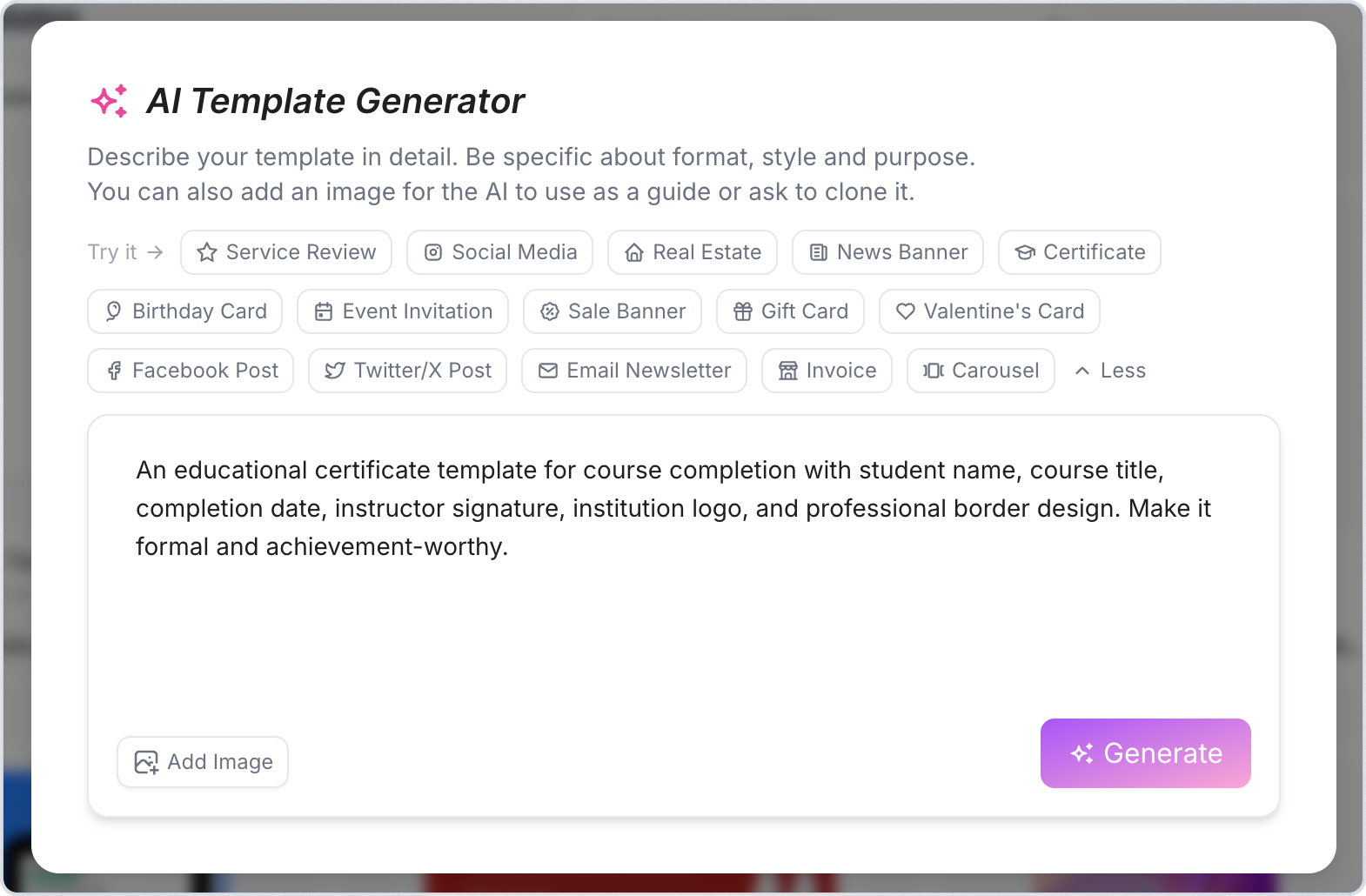
After the template is created, you will land inside the design editor. This is where you refine things. Change spacing. Adjust text blocks. Replace visuals. Add brand elements. The generator gives you a strong starting point, and the editor lets you polish it until it feels right for your workflow.
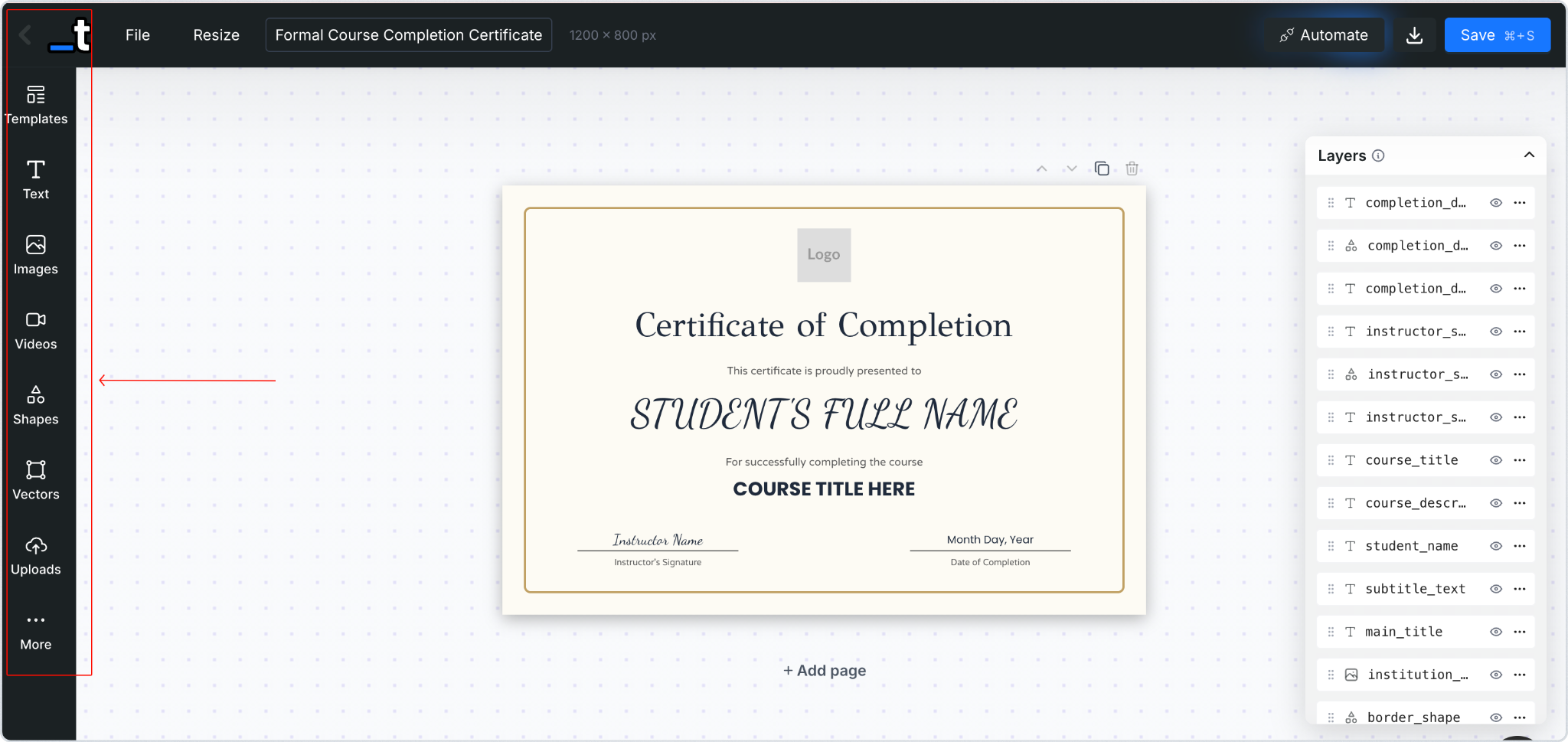
If you want to see the full process step by step, we have already covered it in a detailed guide on how to build a base template with AI for your automation.
3. Create Template Faster Using Templated MCP Integration
Before jumping into template generation, let’s quickly understand MCP. MCP, or Model Context Protocol, allows AI assistants to interact with tools like Templated through structured instructions. Instead of switching between dashboards and writing long prompts every time, your automation can pass context directly. Your assistant understands what you want and performs actions such as creating templates, updating layers, or generating renders.
MCP itself is not limited to templates. It can handle assets, folders, renders, and other automation tasks. But when connected with Templated, it becomes a very practical way to generate templates faster without repeating manual setup.
Templated offers MCP integration, which lets AI tools like ChatGPT, Cursor, or Claude connect directly to your account. Once connected using your API key, you can simply describe what you want. For example, you can ask your assistant to create a new social post template, clone an existing design, inspect layers, or organize templates into folders. The assistant uses the Templated MCP server in the background to perform these actions, while you stay focused on the workflow instead of the technical steps.
A typical flow looks simple. You connect your account, give your assistant instructions in plain language, and the base template gets created. After that, you can open the design inside the editor to refine visuals, adjust layout, or add brand elements. It keeps the process fast while still giving you full creative control.
If you want to see how MCP works inside Templated step by step, check out the video below ⬇️
Wrap Up
Templates are the starting point of every automation workflow. Once your structure is ready, everything else moves faster. Whether you generate social visuals, product updates, reports, or certificates, the idea stays simple. Build the template once, then let automation handle the heavy lifting.
This is where Templated truly shines. Offering a powerful API for seamless generation of images, PDFs, and videos, it empowers you to elevate your content creation like never before. Templated supports a wide range of workflows and use cases, from shipping labels and agency creatives to social media visuals, certificates, and personalised marketing. You can turn any template into a scalable system. Instead of switching between tools, you manage visuals from one place and keep your branding consistent across campaigns.
If you are new to automation or don’t come from a coding background, start with a few practical tutorials.
They show real workflows you can follow step by step:
- How to Automate Employee Offer Letters
- Automate Social Media Posting on Multiple Platforms Using Make and Templated API
- Automation to Repurpose Your Content Posting Positive Reviews on LinkedIn
- Automate Personalized Welcome Email Images with Templated and Make
To automate your workflow, sign up for Templated and receive 50 free credits to start building.