How to Use AI to Automate Short-Form Video Ads Generation
Automate short-form video ads with an API: design one reusable template, then generate every variation with code, no-code tools, spreadsheets or an AI agent.
In this article
Short-form video ads give you a few seconds to show a product, highlight an offer, and give viewers a reason to click. Video is also a clear investment priority 88% of media and advertising experts rank digital video among their top priorities for 2026, ahead of display and audio.
But one ad won’t suit every audience. You might need different visuals for different customer groups, a local offer for each city, or a tailored opening hook. As those combinations grow, editing every version by hand becomes difficult to keep up with.
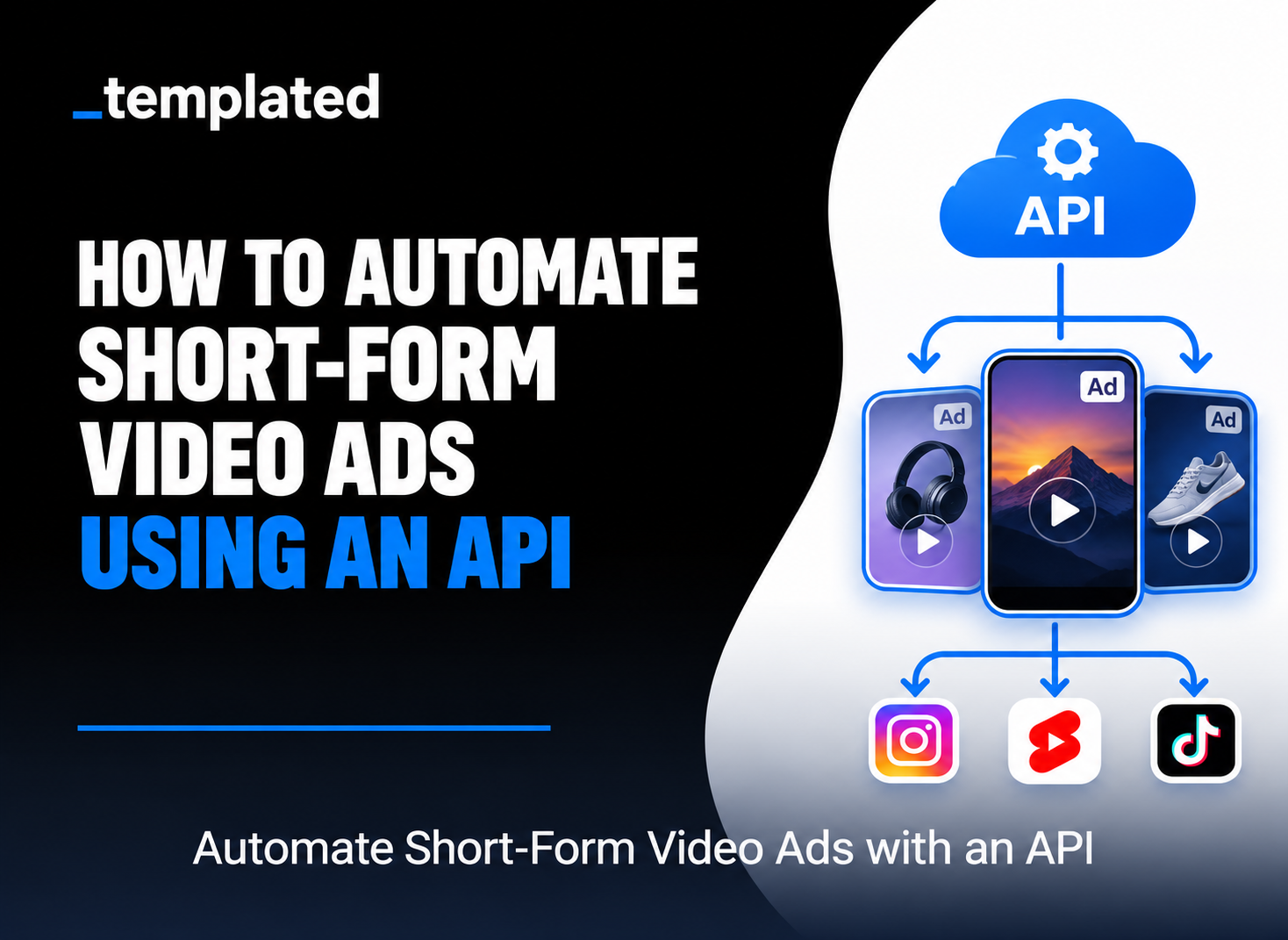
With Templated, you can create a reusable video template and supply the images, headlines, offers, and other details for each variation. Our Video Automation API uses that content to generate your video ads in bulk, keeping the design consistent across versions.
It’s easier than you might think. The same approach can also help you create images and videos for social media posts or personalized images for email campaigns.
In this guide, we’ll cover how to automate short-form video ads with Templated, whether you prefer writing code, using no-code tools, or working with an AI agent.
Let’s get started.
Step 1: Start with a Template
Already have a design in Canva, Adobe Illustrator, or HTML? You can import it into Templated and work with it as editable layers.
If you’re starting fresh, use Templated’s AI template generator. Describe what you want, including your brand colors, content, and layout, and it will create a template you can customize.
Then, open the template in Templated’s drag-and-drop editor to make it your own. Add product images, upload your logo, change fonts, or adjust the layout until it looks the way you want. If you’ve used Canva, the editor will feel familiar, and you don’t need professional design skills to use it.
You can also build your template from scratch in the editor.
Here are the steps to do it:
→ Sign up on Templated with your Google Account.
→ On the Dashboard, go to My Templates. Pick a template, import it or create a new template.

→ Edit the template just like you would do in Canva, and give the layers and template a name.

That’s it. This is how easily you can make your template ready.
Step 2: Connect Your Content in a Way That Works for You
Once your template is ready, prepare the content you want to change in each video ad. This could be the product image, opening headline, discount, or call to action.
Before you get started, you’ll need your Templated API key. Click API Key in your dashboard and copy it to connect Templated to your workflow.

You can organize these details in a Google Sheet, with one row for each ad variation and a column for each layer you want to update. For example, if you’re promoting the same product in different cities, keep the product image the same and change the city name and offer.
Now, choose how you want to send that content to Templated. You have a few options:

Connect Using Your Preferred Programming Language
Use JavaScript, Python, Java, PHP, or any other language that supports HTTP requests to connect with Templated’s REST API. You can also test requests using cURL.
Our API documentation covers the requests and parameters you’ll need to send your content and generate each variation.
Connect Through Make, Zapier, or n8n
Prefer working without code? You can use Make, Zapier, or n8n to connect your content source to Templated.
Let’s say you’re keeping your ad content in Google Sheets. Your workflow can pick up a new row, pass its values to the matching template layers, and reques t a video.
→ Connect Templated using your API key. → Select your template. → Map your content fields to the layers you named earlier. → Test the workflow and turn it on.
Once connected, the workflow can repeat whenever your chosen trigger runs.
Need help connecting your sheet and mapping the fields? Check out the walkthrough tutorials -
Work with an AI Agent
You can also connect Templated to an AI assistant such as Claude, ChatGPT, or Cursor through its MCP server.
After connecting your account, you can ask the assistant to find your template, check its layers, and generate videos using the content you provide. Follow our MCP setup guide to get connected.
For example: “Use my summer sale template to create three video ads with these product images, headlines, and offers.”
Upload a Spreadsheet
If you already have your content ready and just want to generate a batch, use Spreadsheet Generation.
Upload a CSV or Excel file containing your variation data. If you prepared it in Google Sheets, download it in a supported format first, then upload it to Templated for bulk generation.
Trigger Videos with Webhooks
Already have a system that sends data when something happens? Create a webhook in Templated and map the incoming fields to your template layers. Your system can then send the content to that webhook URL to trigger a render.
Want to connect your data directly from Google Sheets, Airtable, WordPress, or Shopify? We’re working on these integrations too, along with Dynamic URLs. Keep an eye on our changelog, where we share product updates, or subscribe to get notified when they’re ready.
Step 3: Generate and Review Your Video Ads
With your template and content connected, you’re ready to generate your video ads. Start with one or two variations to check that everything looks the way you want before running the full batch.
Make sure the product images fit, the headlines are easy to read, and the offer and call to action stay on screen long enough. Try your longest headline too, so you can catch any text that gets cut off.
Once you’re happy with the result, generate the remaining variations using the method you connected:
→ Using code Send a render request for each variation, with the output format set to mp4. Your application can check the render status and collect the video URLs once they’re ready.
→ Using Make, Zapier, or n8n Run your workflow to pass the content to Templated. You can add another step to save the resulting video links back to your spreadsheet or send them to your team for review.
→ Working with an AI agent Ask your assistant to generate the variations using your template and prepared content, then return the video links so you can review them.
→ Uploading a spreadsheet Start the bulk generation, check its progress, and download the completed results.
→ Using webhook Have your system send the content whenever your chosen event happens, then collect the generated output in your workflow.


Now your ads are ready for review and upload to your advertising platform. Whenever you have a new product, offer, or campaign, update the content and reuse the same template to create the next batch.
Wrap Up
Once your template and workflow are ready, creating new video ads becomes a matter of updating your content. Start with a few variations, review the results, and reuse the setup for your next campaign.
Ready to try it? Check out Templated and sign in to start creating your short-form video ads.